
Funcionalidad OCR semiautomatizada en los controles de PhotoRobot
La siguiente guía de usuario describe cómo utilizar las herramientas semiautomatizadas de Reconocimiento Óptico de Caracteres (OCR) en el software de la aplicación PhotoRobot Controls. En la aplicación PhotoRobot Controls (más adelante simplemente "CAPP"), la funcionalidad OCR integrada permite la captura de imágenes mediante el registro automático de datos del producto.
Nota: Solo es posible una semi-automatización de la extracción de datos OCR mediante PhotoRobot Controls, ya que no existe un endpoint OCR disponible en la API de PhotoRobot Cloud.
El OCR funciona en combinación con la herramienta Unfold en CAPP para leer y extraer texto en embalajes y etiquetas, incluyendo texto que rodea objetos cilíndricos. CAPP registra automáticamente datos como pesos, dimensiones, listas de ingredientes, información nutricional y datos en el envase para adjuntarlos como metadatos a imágenes individuales. Esto permite la producción de giros 360 en conjunto con imágenes GS1, desde embalajes y fotos informativas, hasta planogramas y fotos de marketing. Al mismo tiempo, las funciones de entrega automática de CAPP ayudan a soportar cualquier proceso manual, simplificando y acelerando los flujos de trabajo de entrega de contenido.
Cómo usar la herramienta OCR en PhotoRobot Controls
La siguiente guía de usuario describe en detalle cómo acceder y operar funcionalmente la herramienta de Reconocimiento Óptico de Caracteres en CAPP. Asegúrate siempre de ejecutar la última versión del software para obtener las últimas funciones y el funcionamiento más fluido.
Nota: Para más información sobre la instalación y primer uso de CAPP, consulte el Manual de Usuario para Empezar de PhotoRobot.
1. Crear nuevo elemento en CAPP
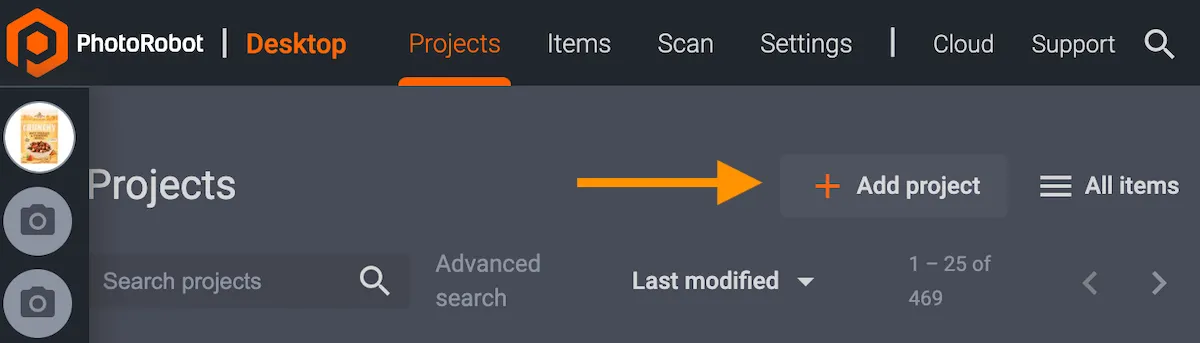
Para acceder a la función OCR de PhotoRobot, primero abre la versión local de CAPP y crea un nuevo Proyecto (si no existe ya).
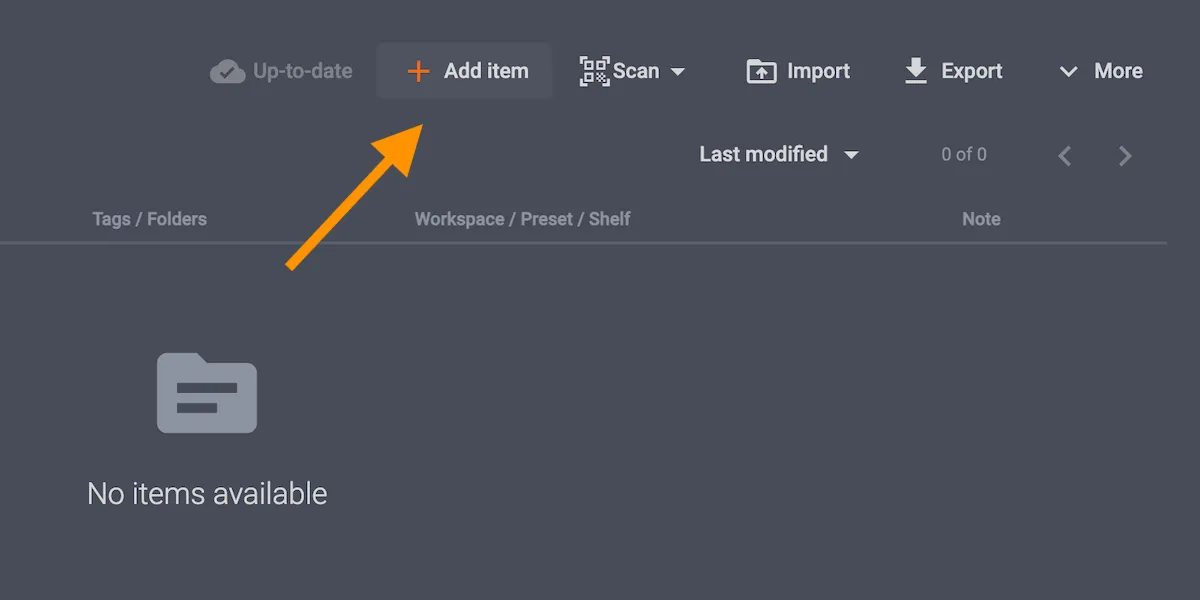
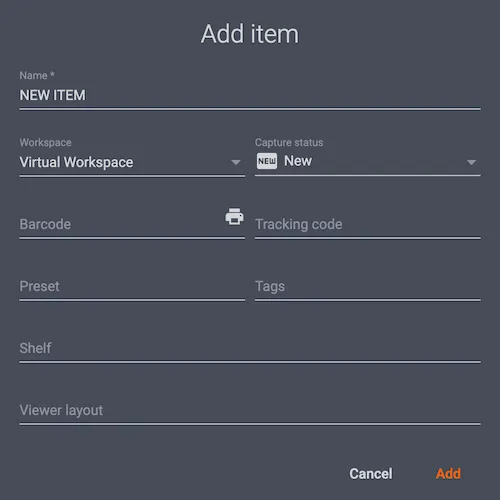
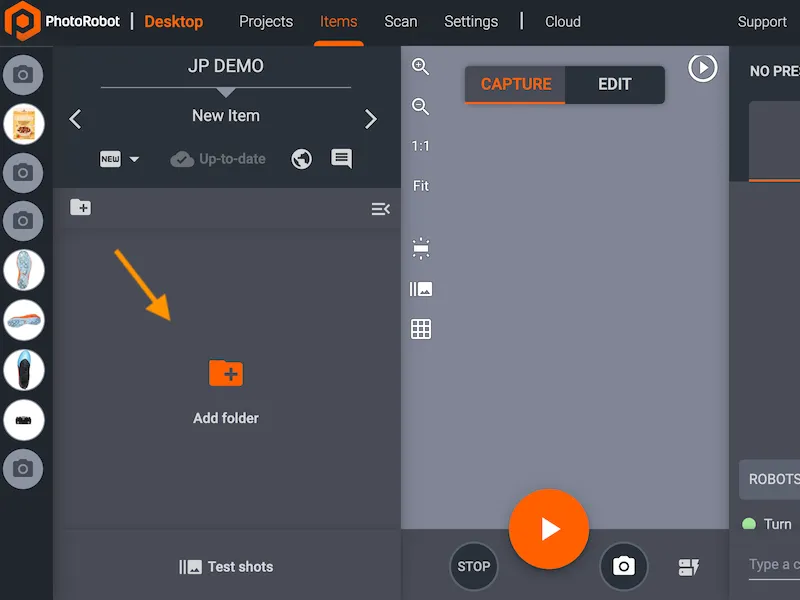
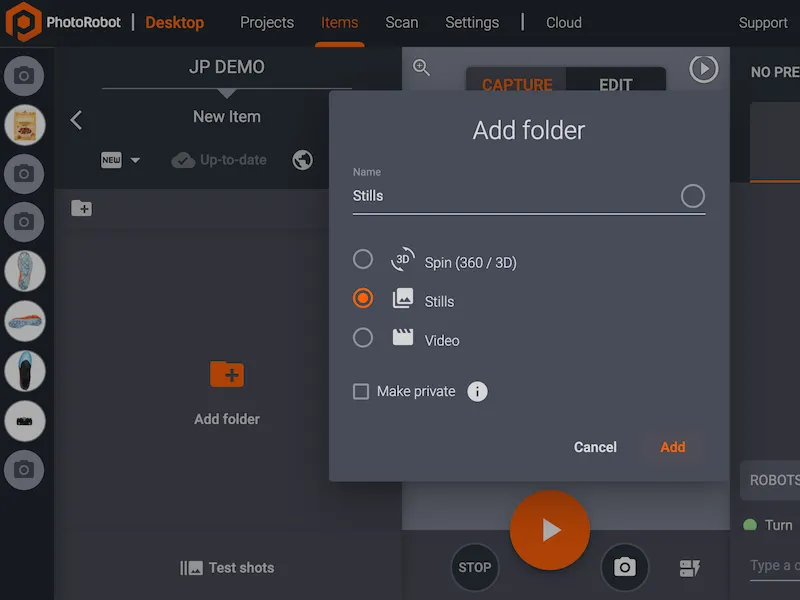
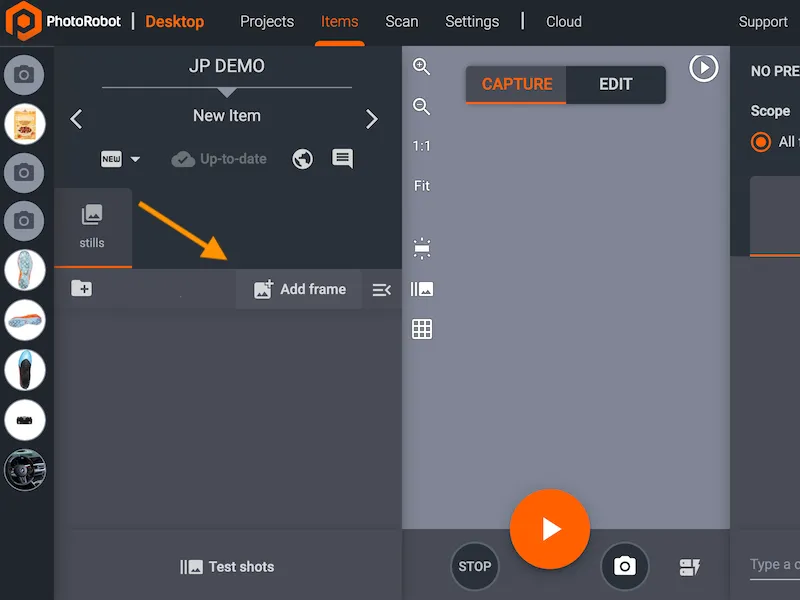
A continuación, en el nuevo proyecto, crea un nuevo artículo para el producto que vas a fotografiar. Luego, crea una carpeta para Stills y añade al menos un fotograma.
2. Fotografía del objeto
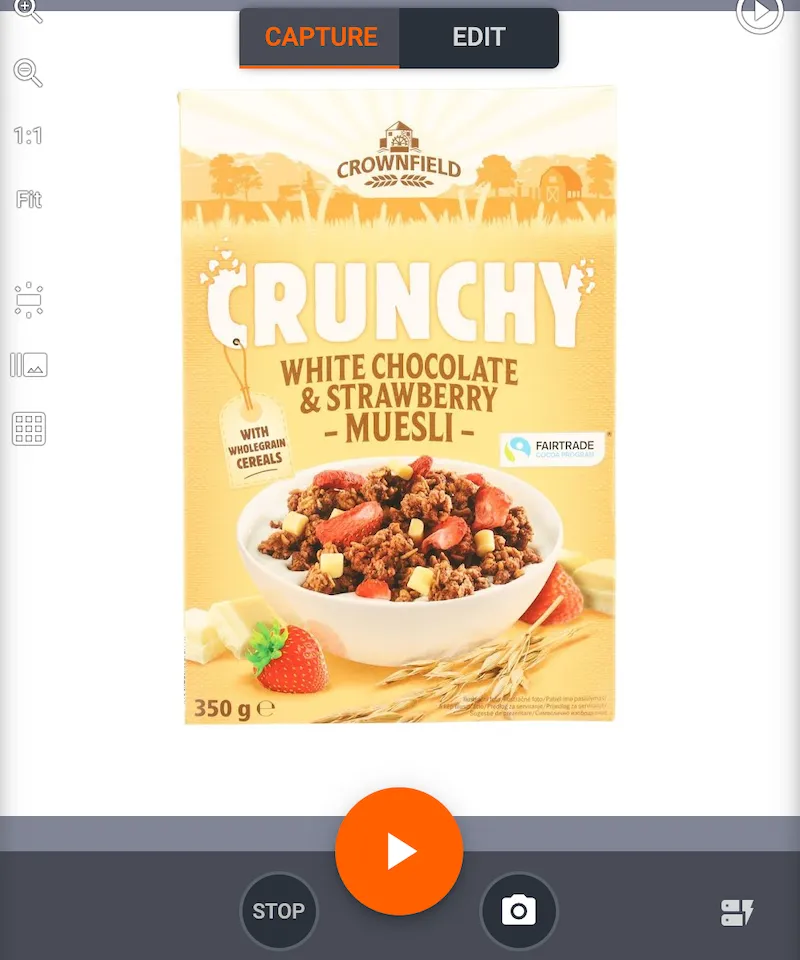
Después de añadir la carpeta de imágenes fijas con al menos un fotograma, pulsa el botón Start (o escanea el código de barras de inicio) usando la interfaz de modo Captura de CAPP para fotografiar el objeto.
3. Aplicar ediciones a las imágenes
Aplica cualquier edición a la foto, por ejemplo: recorte o cualquier preajuste de edición ya configurado en CAPP.
4. Subir el elemento a la nube
Si no subes automáticamente el elemento a PhotoRobot Cloud, súbelo manualmente a PhotoRobot Cloud y luego cambia a la interfaz de modo Edición.
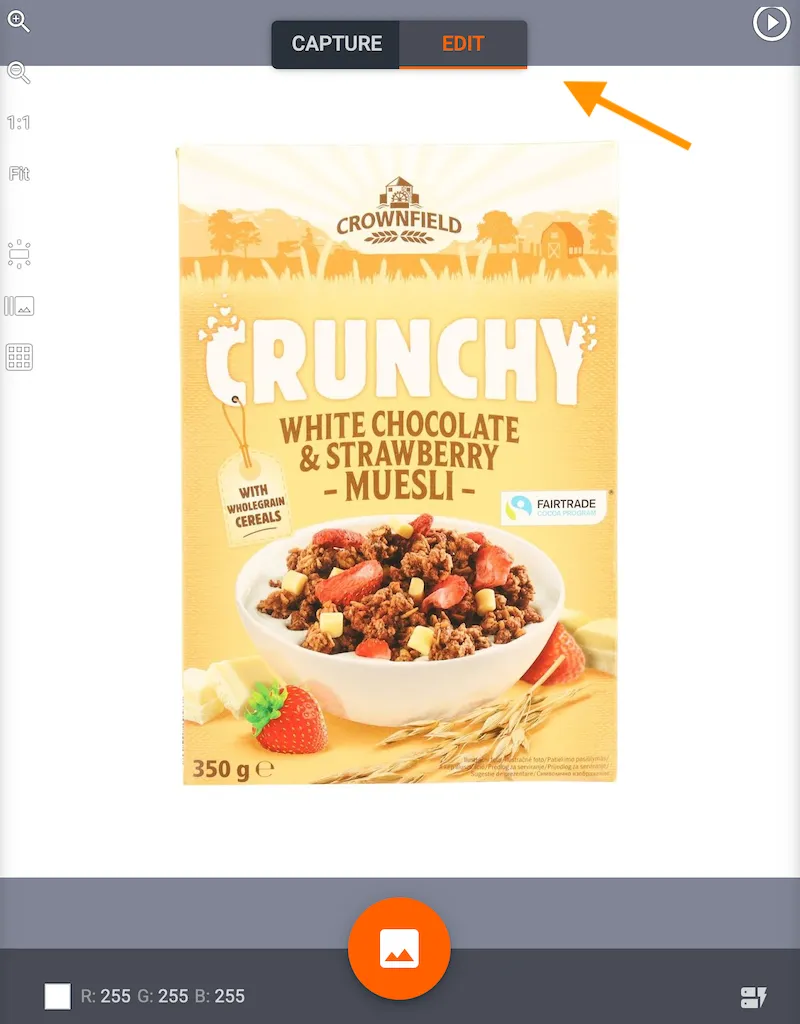
5. Extraer anotaciones OCR en modo edición
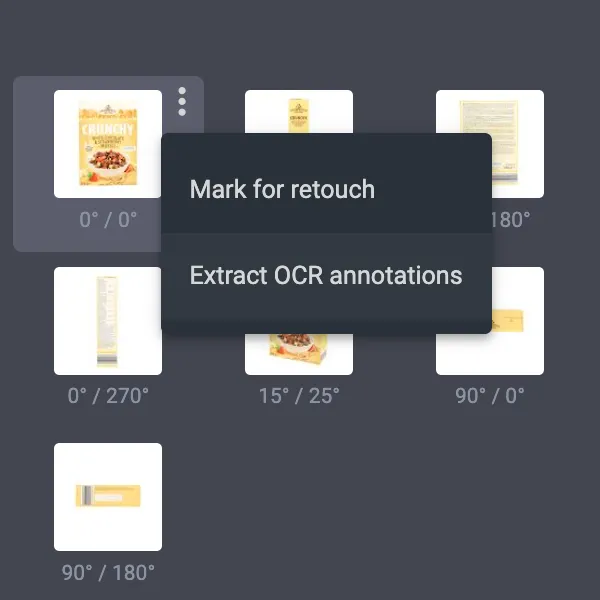
En la interfaz del modo Edición en la versión Cloud de CAPP, haz clic en los tres puntos verticales junto a la imagen en miniatura del elemento en el lado izquierdo de la pantalla. Luego, haz clic en Extraer anotaciones OCR. La miniatura ya estará modificada para contener los datos OCR.
6. Revisa las anotaciones OCR en toda la carpeta
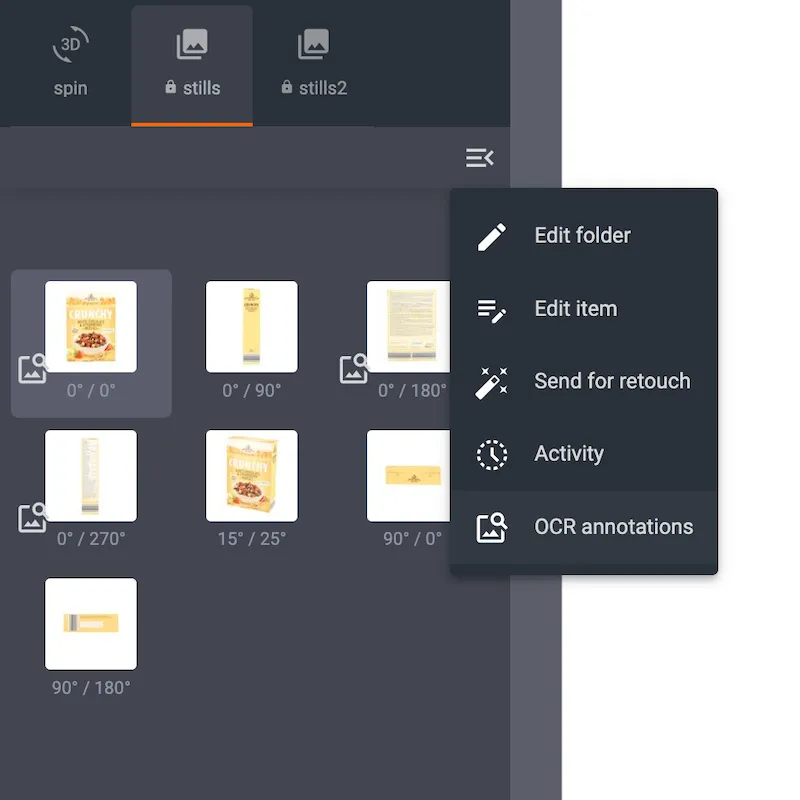
Además, es posible comprobar las anotaciones OCR de toda una carpeta abriendo las opciones individuales de la carpeta y haciendo clic en anotaciones OCR.
7. Exportar artículo con anotaciones OCR
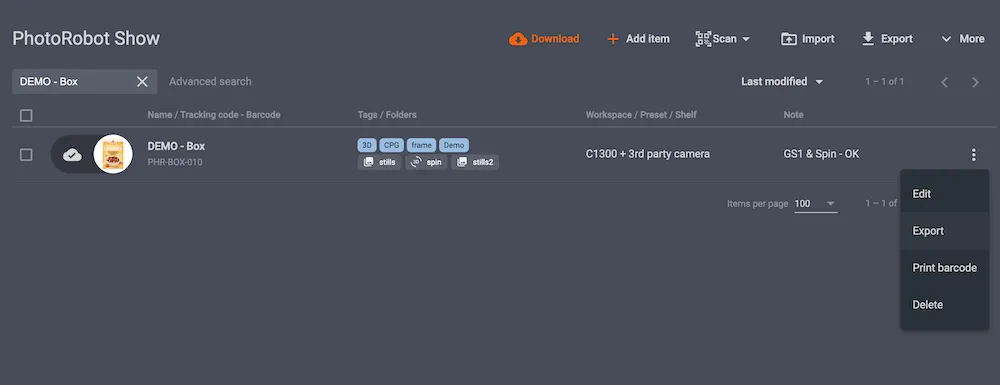
Para exportar un Elemento con anotaciones OCR, abre un Proyecto en la versión local de CAPP. A continuación, haz clic en los tres puntos verticales junto al elemento en la lista de artículos y haz clic en Exportar para abrir las opciones de exportación.
8. Configurar opciones de exportación para anotaciones OCR
En las opciones de exportación de la versión local de CAPP, primero elige qué elementos exportar de Todas las carpetas o de Carpetas seleccionadas. Asegúrate primero de revisar dos veces la carpeta Output y luego localiza las opciones de exportación de la Galería (opcional ).
Marca todas las casillas ACTIVADAS en este campo si no está ya hecho: Añadir HTMLPreview, añadir datos OCR extraídos en data.json configuración y añadir data.json configuración para PhotoRobot SpinViewer.
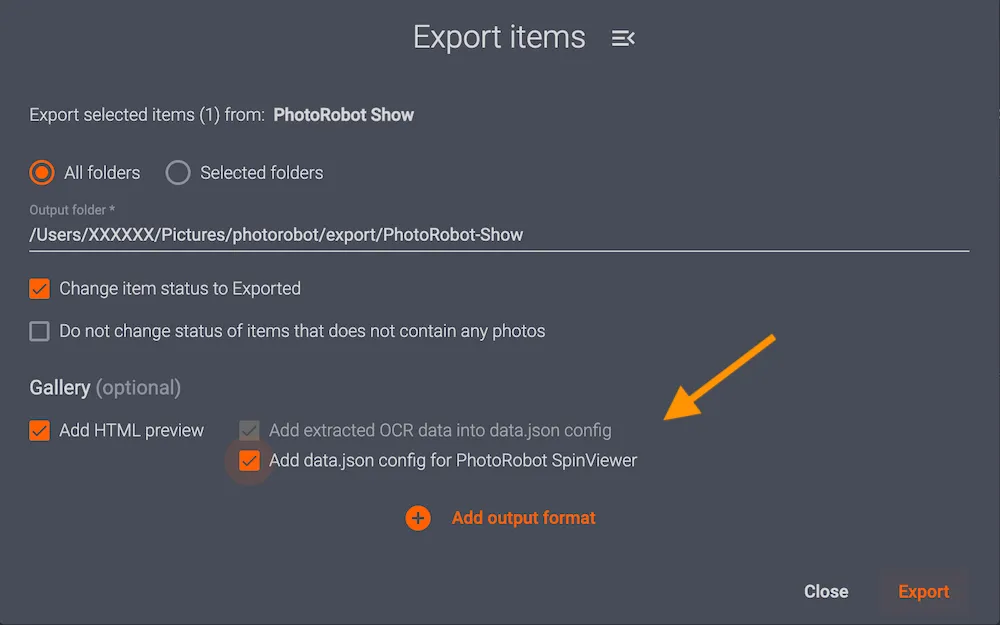
9. Exportar con OCR al Directorio Local de Exportación de Disco
Después de revisar dos veces todos los ajustes de exportación, haz clic en exportar para exportar las imágenes con anotaciones al directorio de exportación en tu disco local. Luego, busca el archivo "data.json" en el directorio de exportación.
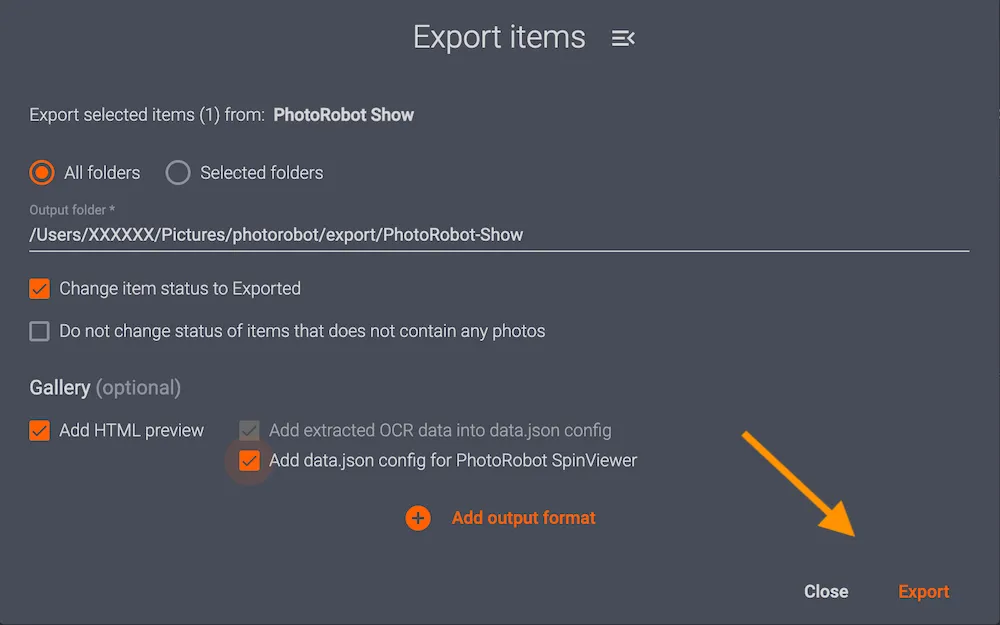
10. Acceder a los datos extraídos de OCR para su revisión
Para ver los datos OCR extraídos, localiza el archivo "... extractedOcrData":["Furjee"]}]]..." Aquí es donde se almacenan todos los datos.
Nota: No hay ningún endpoint OCR disponible en la API de PhotoRobot Cloud.
Recursos adicionales de PhotoRobot OCR
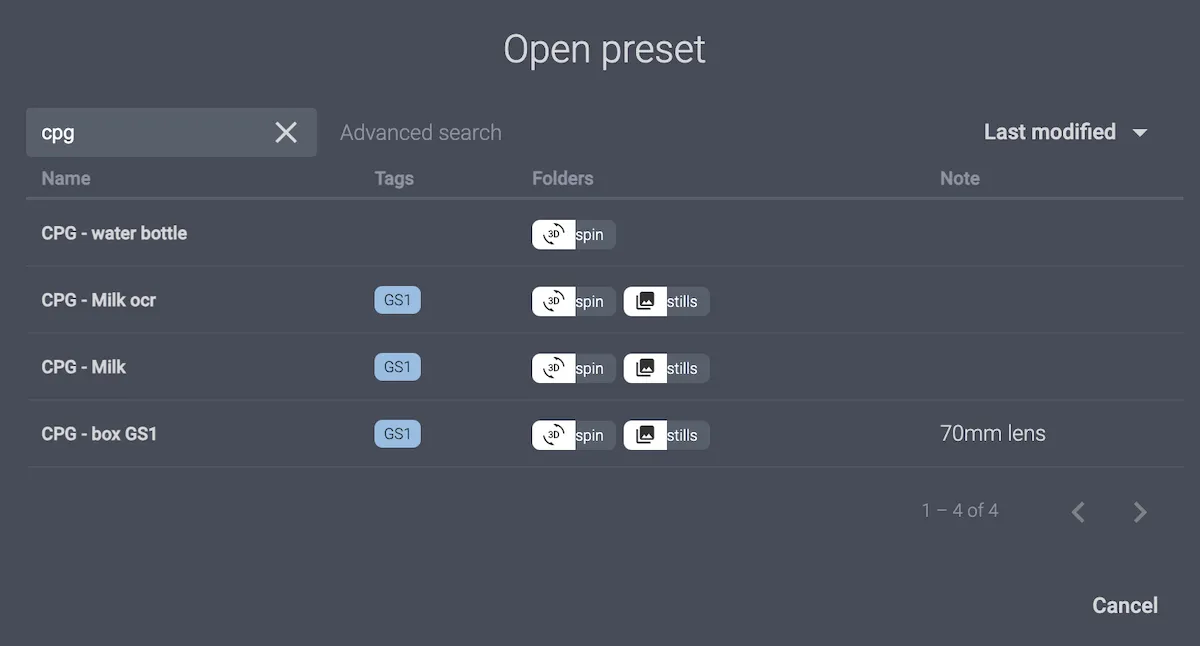
Para más información sobre la función OCR de PhotoRobot y la captura de imágenes GS1, consulte:


Serie EOS Rebel


Serie EOS DSLR


Serie mirrorless EOS M


Serie PowerShot


Primer plano / Portátil

La serie EOS Rebel de Canon ofrece cámaras DSLR para principiantes con una calidad de imagen sólida, controles intuitivos y funciones versátiles. Ideales para los entusiastas de la fotografía, estas cámaras proporcionan un enfoque automático fiable, pantallas táctiles de ángulo variable y grabación de vídeo Full HD o 4K.
Conexión
Resolución (MP)
Resolución
La serie EOS DSLR de Canon ofrece imágenes de alta calidad, enfoque automático rápido y versatilidad, lo que la hace ideal tanto para la fotografía como para la producción de vídeo.
Conexión
Resolución (MP)
Resolución
La serie mirrorless EOS M de Canon combina un diseño compacto con un rendimiento similar al de una cámara réflex. Con lentes intercambiables, enfoque automático rápido y sensores de imagen de alta calidad, estas cámaras son ideales para viajeros y creadores de contenido que buscan portabilidad sin sacrificar la calidad de la imagen.
Conexión
Resolución (MP)
Resolución
La serie PowerShot de Canon ofrece cámaras compactas y fáciles de usar para fotógrafos ocasionales y entusiastas. Con modelos que van desde simples cámaras de apuntar y disparar hasta cámaras con zoom avanzado, brindan comodidad, calidad de imagen sólida y funciones como estabilización de imagen y video 4K.
Conexión
Resolución (MP)
Resolución
Las cámaras de mano y primeros planos de Canon están diseñadas para fotografía y vídeo detallados y de cerca. Compactos y fáciles de usar, ofrecen un enfoque de precisión, imágenes de alta resolución y capacidades macro versátiles, perfectas para vlogs, fotografía de productos y primeros planos creativos.


